
Spacebar Not Working guide
Spacebar not working problems need a different test from ordinary letter keys because Space is wide, heavily used, and often supported by a stabilizer. A center press can work while the left or right edge fails, and a key can feel normal while the browser still misses or repeats the input.
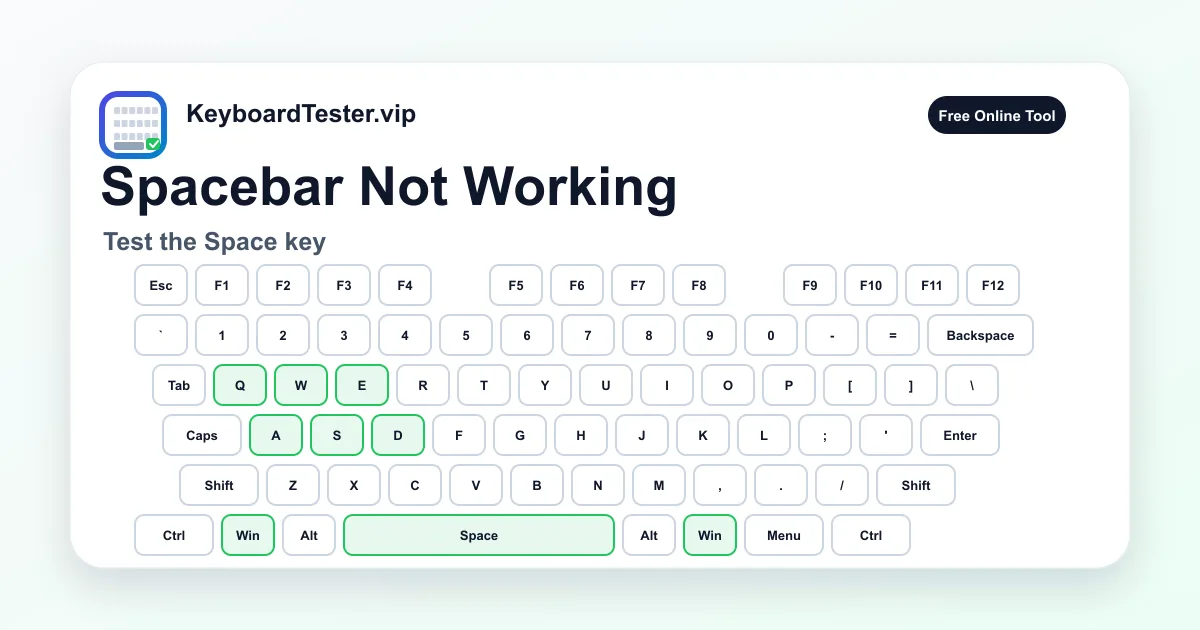
Use the live keyboard tester first to confirm whether the browser receives Space at all. Then compare center presses, left-edge presses, right-edge presses, short taps, longer holds, and release behavior. This pattern shows whether spacebar not working is likely a switch, stabilizer, keycap, laptop scissor mechanism, debris, or software focus issue.
A page that scrolls when you press Space can hide the real result, so this tester keeps Space focused on input detection. If the Space key appears here but fails in one editor, game, browser form, or remote desktop session, spacebar not working may be caused by that app, a shortcut layer, an extension, accessibility settings, or keyboard layout behavior.
Do not remove a laptop spacebar aggressively just because one test fails. Laptop spacebar mechanisms are easy to crack, and many models use fragile clips. Work from software evidence to safe external checks first, then inspect debris, keycap seating, stabilizer travel, switch chatter, and hardware only when the failure pattern supports it. Spacebar not working diagnosis should protect the keyboard from unnecessary damage.
Quick diagnostic checklist
- 1
Click inside the tester, press Space once in the center, and confirm the Space key lights immediately.
- 2
Repeat the same test on the left edge and right edge because spacebar not working often appears only on one side.
- 3
Hold Space for one second, release it, and confirm the active state clears instead of staying stuck.
- 4
Tap Space 20-30 times at a normal typing speed to catch missed input or repeated spaces.
- 5
Test the same Space key in a plain text field and another browser if the result is inconsistent.
- 6
If Space works here but not in one app, check focus, shortcuts, game bindings, browser extensions, and remote desktop capture.
- 7
If the spacebar not working issue started after keycap removal, inspect stabilizer clips and keycap seating before deeper repair.
- 8
If it started after crumbs, dust, or liquid exposure, clean only in a way that is safe for your keyboard type.
- 9
Compare an external keyboard or another USB/Bluetooth connection before assuming the laptop keyboard needs replacement, especially when spacebar not working appears suddenly after a setting or update.
Step-by-step key test order
- 1
Confirm focused Space detection
Click inside the tester, press the center of the Space key once, and watch the highlighted key, last-key panel, and key history.
Watch for: If Space never appears, spacebar not working is a real input symptom. If the page scrolls or nothing changes, refocus the tester and repeat before judging hardware.
- 2
Compare center, left edge, and right edge
Press the center of the spacebar five times, then the left edge five times, then the right edge five times. Use the same pressure and speed for each group.
Watch for: Center-only success usually points toward stabilizer, keycap, or uneven travel. A full failure across every position points more toward switch, membrane, connection, or software input handling.
- 3
Check release and stuck-key behavior
Hold Space briefly, release it, and confirm that the key stops showing active. Try a slow release and a quick tap.
Watch for: If Space stays active after release, spacebar not working may actually be a sticky key, stabilizer friction, contamination, or a switch that is not returning cleanly.
- 4
Look for repeated spaces
Tap Space repeatedly at normal typing speed. If available, also use the Double Type Test with a 60-100ms threshold.
Watch for: Extra spaces after one press suggest chatter, dirty contacts, firmware debounce issues, or an operating system repeat setting. Treat repeated spaces differently from a dead key.
- 5
Compare app behavior
Test Space in this page, a plain text editor, the affected app, and a browser address bar or search box.
Watch for: If the tester sees Space but one app ignores it, the spacebar not working problem is likely focus, shortcuts, extensions, game bindings, or remote session capture.
- 6
Check accessibility and repeat settings
Review Sticky Keys, Filter Keys, Slow Keys, key repeat delay, repeat rate, and any keyboard remapping tool that can change Space behavior.
Watch for: Slow or filtered input can make a healthy key feel dead. A setting mismatch is more likely when other keys also feel delayed or require longer presses.
- 7
Inspect safely for debris or seating issues
For mechanical keyboards, remove the keycap only if you know the switch and stabilizer style. For laptops, avoid force unless the model supports spacebar removal.
Watch for: Debris, a loose keycap, a dislodged stabilizer wire, bent clips, or damaged scissor hinges can all create spacebar not working symptoms after cleaning or keycap removal.
- 8
Compare another keyboard or connection
Try an external keyboard, another USB port, a wired mode if available, fresh batteries, or another computer. Keep the same center/edge/release test sequence.
Watch for: Hardware becomes more likely when the same keyboard fails across devices. If spacebar not working disappears with another keyboard, focus on the original keyboard hardware; if it remains in one app, inspect software.
Coverage zones to verify
Center press registration
One clean press in the middle of Space
This confirms whether the basic Space key event reaches the browser before you diagnose edges, repeat, or stabilizer travel.
Left and right edge travel
Left-edge Space, right-edge Space, corner presses
Wide keys can fail unevenly. Edge tests are the fastest way to separate spacebar not working from a stabilizer or keycap seating problem.
Release and stuck state
Hold Space, release Space, slow release, quick release
A key that stays active after release can create accidental scrolling, long blanks, or game movement that continues after the finger lifts.
Repeat and chatter behavior
Rapid taps, normal typing rhythm, double type threshold
Duplicate spaces need a chatter or repeat-rate workflow, not the same workflow as a completely missing Space key.
Software focus and shortcuts
Tester focus, text editor, target app, browser form, game binding, remote desktop
Space often triggers scrolling, play/pause, selection, or game actions. Compare contexts before treating spacebar not working as hardware.
Keyboard type and repair risk
Mechanical stabilizer, laptop scissor, membrane dome, external keyboard comparison
Repair steps differ by keyboard type. Laptop spacebars are fragile, while mechanical keyboard stabilizers are usually easier to inspect safely.
Why the Space key needs its own test
The Space key is wide, heavily used, and mechanically different from most keys. On a full-size keyboard it usually has a stabilizer, while laptop spacebars often use delicate scissor clips or butterfly-style mechanisms depending on the model. That makes spacebar not working more complex than a simple dead letter key.
A normal typing test can miss the pattern because people naturally press Space in the center. If the center works but the edge fails, the key may still feel usable until fast typing, gaming, or coding exposes missed spaces. A dedicated test catches center, edge, hold, release, and repeat behavior separately.
The browser result is not the whole repair answer, but it is a clean first signal. If the tester reliably sees Space, you can move toward app focus, shortcuts, and repeat settings. If the tester never sees Space, hardware or connection checks become more important. This keeps spacebar not working troubleshooting in the right order.
Center press vs edge press diagnosis
When spacebar not working happens only on the left or right side, the stabilizer path matters. A wide key should transfer force evenly from either edge to the switch or contact below. If one edge does not actuate, the stabilizer may be loose, dry, misseated, bent, or blocked by debris.
For mechanical keyboards, a safe keycap pull can expose the switch stem and stabilizer mounts. Look for a wire that has popped out, a clipped-in stabilizer that is not seated, or a keycap stem that is cracked. For laptops, do not pry blindly because replacement clips can be hard to source.
If every position fails equally, the issue is less likely to be edge travel and more likely to be switch contact, membrane trace, cable, keyboard controller, wireless connection, or software capture.
Sticky or stuck spacebar symptoms
A sticky Space key can look like a software problem because it may keep scrolling a page, add a long blank run, or keep a game character moving. Test release behavior by holding and lifting your finger slowly. If the key remains active after release, the physical return path needs attention.
Common causes include crumbs, dust, hair, dried drink residue, stabilizer friction, warped keycaps, and damaged laptop clips. Spacebar not working after a spill should be treated carefully: repeated pressing can push residue deeper, and liquid damage can continue corroding contacts over time.
For external mechanical keyboards, unplug before cleaning and follow the keyboard maker guidance. For laptops, use gentle cleaning around the key and avoid removing the spacebar unless the official service guide or model-specific instructions support it.
Repeating or double spaces
A spacebar that duplicates is not the same as a spacebar that never works. Repeated spaces can come from switch chatter, dirty contacts, aggressive key repeat settings, firmware debounce problems, or stabilizer bounce. The symptom is especially obvious in passwords, search boxes, and code where extra blanks matter.
Use this page to confirm that Space registers, then move to the Double Type Test if one physical press produces more than one event. A 60-100ms threshold is useful because true intentional repeat usually takes longer than switch chatter.
If double spaces appear only while holding the key, check operating system repeat delay and repeat rate. If double spaces appear on quick single taps, the hardware or firmware debounce path deserves more attention.
Software, browser, and accessibility settings
Space can scroll pages, activate focused buttons, pause media, select checkboxes, trigger game jumps, or behave differently inside remote desktops. That means spacebar not working in one context can be a focus or shortcut problem even when the hardware is healthy.
Check Sticky Keys, Filter Keys, Slow Keys, keyboard repeat settings, browser extensions, keyboard remappers, macro utilities, and game bindings. If other keys also feel delayed or ignored, the Space key may be only the most visible symptom of a broader input filter.
A good comparison is this tester plus a plain text editor plus the exact affected app. If the first two work and the third fails, fix the app layer first. If all three fail, continue with hardware and connection checks. Spacebar not working in every context is a stronger hardware signal than one failed app.
Safe repair decisions before replacement
Before replacing hardware, document the pattern: whether Space appears in the tester, whether center and edge presses differ, whether the key sticks after release, whether duplicates happen, and whether another keyboard works in the same environment. Those notes prevent unnecessary parts purchases.
Mechanical keyboard users can often reseat a keycap, clean around the switch, inspect stabilizers, or replace a hot-swap switch. Laptop users should be more conservative because a damaged spacebar hinge or clip can turn a small spacebar not working issue into a full top-case repair.
Replacement becomes more reasonable when Space fails across browsers, apps, operating system sessions, and devices after safe cleaning and settings checks. If the keyboard is under warranty, avoid invasive repair and use your test results as evidence.
How to interpret failed keys
| Result | Likely cause | Next step |
|---|---|---|
| Space works in the center but not on one edge | Stabilizer wire, keycap seating, scissor clip, or uneven key travel is more likely than a software issue. | Inspect only if safe for the keyboard type, then reseat the keycap or stabilizer carefully and retest center and edge presses. |
| Space never appears in the tester | Switch failure, membrane damage, disconnected keyboard, blocked input, focus loss, or a severe spacebar not working hardware fault. | Refocus the tester, try another browser, compare another keyboard, then inspect connection or hardware if the failure repeats. |
| Space appears here but not in one app | The app may be intercepting Space for shortcuts, play/pause, selection, game movement, or remote desktop control. | Check app shortcuts, input focus, extensions, game bindings, accessibility overlays, and remote session settings. |
| One press creates two or more spaces | Switch chatter, dirty contact, stabilizer bounce, firmware debounce, or operating system key repeat can mimic spacebar not working. | Use the Double Type Test, lower typing speed, check repeat settings, and clean or service the switch if duplicates persist. |
| Space stays active after release | Sticky residue, debris, stabilizer friction, bent keycap clips, damaged laptop hinge, or a switch that fails to return. | Stop repeated forceful pressing, clean safely, inspect travel, and avoid laptop keycap removal unless the model supports it. |
| Space fails only after cleaning or keycap removal | A stabilizer wire, keycap clip, scissor mechanism, or wide-key mount may not be seated correctly. | Compare photos of the correct mount position for the model, reseat gently, and retest all edges before replacing parts. |
| External keyboard Space also fails in the same app | Software focus, app shortcut capture, accessibility settings, keyboard remapping, or remote desktop input handling is more likely. | Fix the software layer first. Hardware replacement will not solve a spacebar not working symptom caused by the same app environment. |
FAQ
Why does the page not scroll when I press Space?
The tester blocks Space scrolling so the key can be tested cleanly. Without that behavior, a spacebar not working test could move the page instead of showing whether the browser received the key event.
Why does only one side of the spacebar fail?
One-side failure usually points to stabilizer alignment, keycap seating, a laptop scissor clip, or uneven mechanical travel. Test the center, left edge, and right edge separately.
Can cleaning fix a failing spacebar?
Yes, especially when debris, dust, hair, or sticky residue blocks travel. Clean only in a way that is safe for your keyboard type, and be careful with laptop spacebar removal.
Why does my spacebar type two spaces?
Two spaces from one tap can come from switch chatter, dirty contacts, firmware debounce, stabilizer bounce, or key repeat settings. Use the Double Type Test after this basic Space key test.
Is spacebar not working usually hardware or software?
It depends on the pattern. If Space works here but fails in one app, software focus or shortcuts are likely. If Space fails everywhere and edge tests are bad, hardware becomes more likely.
Should I remove a laptop spacebar to fix it?
Not unless the model supports safe removal or you have a service guide. For spacebar not working on laptops, clips can break easily, and a broken clip may require a larger keyboard or top-case repair.
Why does Space work in the tester but not in a game?
The game may use a different input layer, key binding, anti-cheat capture, overlay, or focus state. Rebind Jump or Space actions, disable overlays temporarily, and compare another keyboard.
How do I test after replacing a spacebar keycap?
Press the center, both edges, and each corner. Then hold and release Space several times. If spacebar not working started after keycap replacement, reseat the stabilizer or keycap before replacing the switch.
When should I replace the switch or keyboard?
Consider replacement when Space fails across browsers, apps, and devices after safe cleaning, settings checks, edge testing, and connection checks. Use warranty service if the keyboard is still covered.