
Keyboard Key Tester guide
A keyboard key tester should do more than flash a key once. It should help you prove coverage across the whole board: Esc and function keys, letters, number row, punctuation, modifiers, navigation keys, arrows, and numpad. That coverage view matters because many failing keyboards still type normal words while hiding problems in shortcut keys or rarely used clusters.
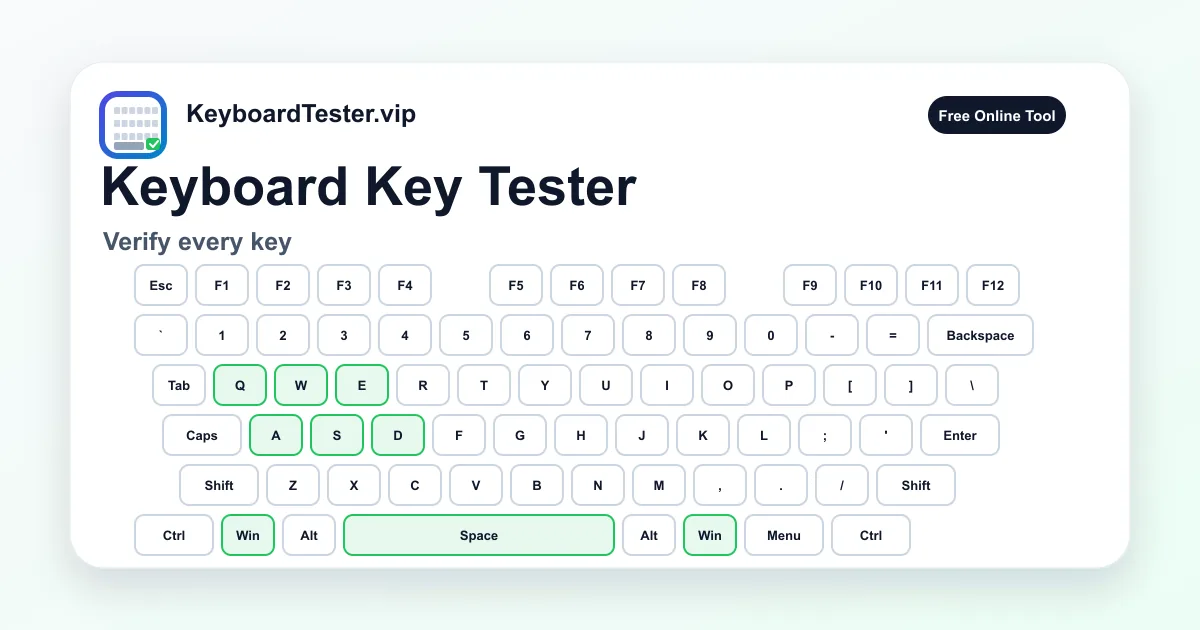
This keyboard key tester is designed for a row-by-row pass. Press each physical key once, watch the matching key light up, and use the remaining count to avoid skipping keys. If one key fails, repeat it slowly before you decide the switch, socket, membrane, or laptop mechanism is bad.
Use this page after cleaning, after a keycap or switch replacement, before returning a laptop, before selling a used keyboard, or when you need proof that a full-size keyboard works. If the keyboard key tester shows all keys as detected but gaming combos still fail, move to the ghosting test because that is a different problem.
Quick diagnostic checklist
- 1
Click the page once so the browser has focus before you begin.
- 2
Start at Esc, move left to right, then drop one row and repeat.
- 3
Test left and right Ctrl, Shift, Alt, Win, and Command-style positions separately.
- 4
Check the navigation cluster, arrow keys, and numpad even if you rarely use them.
- 5
Retest any key that feels late, requires extra pressure, or highlights only once in several presses.
- 6
Write down the failure pattern before cleaning, replacing switches, or changing settings.
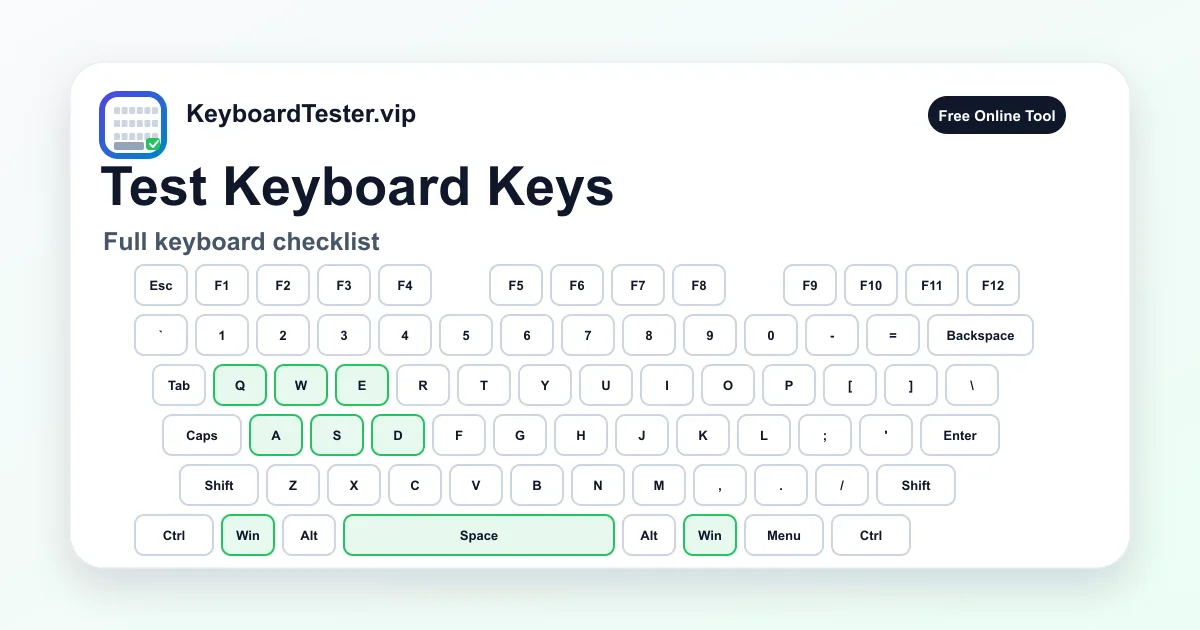
Coverage zones to verify
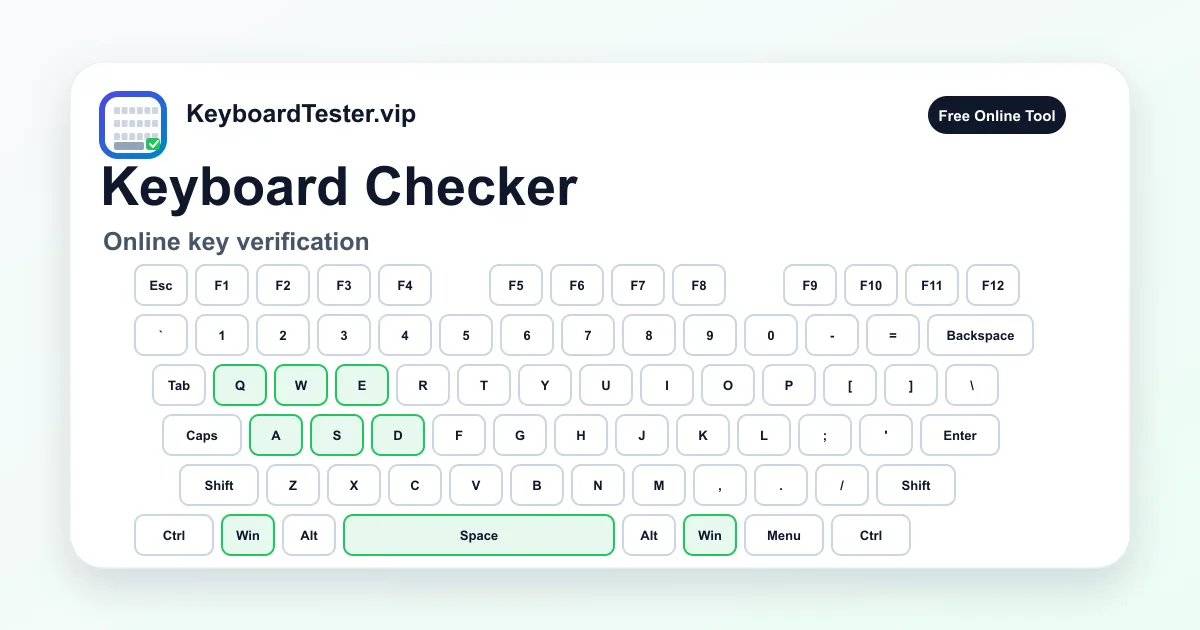
Function row
Esc, F1-F12, Print Screen, Scroll Lock, Pause
Catches firmware-layer shortcuts, top-row damage, and keys that many quick typing tests never touch.
Typing block
Letters, number row, punctuation, Backspace, Enter
Confirms daily typing input and helps separate wrong-character layout problems from dead physical keys.
Left and right modifiers
Shift, Ctrl, Alt, Win, Command, Option, Menu
Shows whether one side of a shortcut fails while the matching modifier on the other side still works.
Navigation cluster
Insert, Home, Page Up, Delete, End, Page Down
Checks editing and spreadsheet keys that are often missed during casual keyboard testing.
Arrow keys
Up, Down, Left, Right
Verifies movement controls used in games, editors, terminal tools, and accessibility workflows.
Numpad
Num Lock area, operators, numbers, decimal, numpad Enter
Confirms calculator-style input and identifies boards where the numpad has a separate cluster fault.
What a keyboard key tester should prove
A keyboard key tester proves that the browser receives a key event from each physical key that can be exposed to the web page. That is not the same as proving every shortcut, macro, or firmware layer works, but it is the fastest baseline for visible keyboard input. Use the keyboard key tester result as the first evidence layer before deeper repair.
The best result is not only a green board. The useful result is a map of what passed, what failed, and what pattern the failure follows. A single dead letter points to a different repair path than a failed column, a failed numpad, or a modifier that stays active after release.
Best order for a full keyboard key tester pass
Use a fixed order instead of random typing. Start with Esc and the function row, move through the number row, then QWERTY rows, modifiers, Space, navigation cluster, arrows, and numpad. This takes a few minutes, but it prevents missed keys and makes the keyboard key tester result repeatable.
For compact boards, test the keys that physically exist and note the missing zones. A 60 percent, laptop, ISO, JIS, or Mac keyboard may not match every key on a 104-key visualizer, so the goal is coverage of your physical layout rather than forcing the remaining count to zero.
How to read failure patterns
A single missing key often means local mechanical failure. Several missing keys in a line can point to matrix damage, a ribbon problem, or liquid corrosion. A key that works here but fails in one app usually points to focus, shortcuts, remapping, or the app itself.
Wrong characters usually mean layout settings, not broken hardware. Duplicated characters usually need a chatter check. Keys that fail only while other keys are held need a rollover or ghosting test. Keeping those categories separate saves time and avoids replacing a good keyboard for a software setting.
When to retest after a fix
Run the same keyboard key tester sequence before and after cleaning, switch replacement, keycap reseating, firmware changes, or driver updates. If the failure moves with a hot-swap switch, the switch is suspect. If it stays in the same socket, the socket or PCB is more likely.
For wireless keyboards, repeat the pass in wired mode if possible. Low battery, Bluetooth interference, USB hubs, and crowded 2.4GHz environments can cause intermittent input that looks like a failing key during a quick test.
How to interpret failed keys
| Result | Likely cause | Next step |
|---|---|---|
| One key never lights up | Debris, worn switch, damaged scissor mechanism, hot-swap socket, or local contact failure | Clean carefully, reseat the keycap if safe, then compare the same key in another app. |
| A row, column, or whole cluster fails | Keyboard matrix, ribbon cable, PCB trace, liquid damage, or connector issue | Reconnect the keyboard, try wired mode or another port, then inspect for grouped hardware damage. |
| The key lights up but types the wrong symbol | Operating system layout, input language, remap tool, or stuck modifier | Open the keyboard layout test and compare symbol keys with your OS language setting. |
| A key works alone but fails in a shortcut | Rollover limit, ghosting, game mode, or app-level shortcut capture | Run the ghosting test with the exact shortcut or gaming combination that fails. |
| A key appears twice from one press | Switch chatter, dirty contact, aggressive repeat setting, or unstable wireless input | Use the double type test and set the threshold around 60-100ms for a focused chatter check. |
| Fn or media keys do not appear | Firmware or operating system handles the key before the browser can see it | Test Fn-layer actions such as brightness or volume outside the browser before assuming damage. |
FAQ
What does a keyboard key tester do?
A keyboard key tester shows whether each physical key sends a browser-visible key event. It is useful for finding dead keys, missed keys, wrong labels, stuck modifiers, and coverage gaps before you move to deeper hardware repair.
How many keys should I expect on a full-size keyboard?
Most Windows full-size layouts have 104 keys. Regional layouts, Mac keyboards, laptop keyboards, and compact boards can have fewer, extra, or differently placed keys, so compare the visualizer with your real keyboard.
Do left Shift and right Shift count separately?
Yes. Left Shift and right Shift are separate physical keys. A careful keyboard key tester pass should test left and right Ctrl, Alt, Win, Command, and Option positions separately too, because one side can fail while the other side still works.
Why does Fn not light up in the keyboard key tester?
Fn is often handled inside keyboard firmware before the browser receives input. Test Fn by checking its paired actions, such as brightness, volume, keyboard backlight, or Fn plus F1-F12 behavior.
Why does the remaining count not match my keyboard?
The remaining count is based on a full-size reference layout. Compact boards, laptops, and regional layouts may omit or move keys, so use the count as a guide rather than a strict pass/fail score for every keyboard.
What if every key passes but a game shortcut still fails?
That usually means the issue is not a single dead key. Run the ghosting test with the exact combination that fails, then check game mode, anti-cheat behavior, and in-game keybind settings.
How long should a full keyboard key tester pass take?
A careful pass in this keyboard key tester usually takes two to five minutes on a full-size keyboard. Spend extra time on any key that feels delayed, requires extra force, repeats unexpectedly, or fails only at the edge of a wide key.