
Keyboard Layout Test guide
A keyboard layout test is for the confusing cases where the key works but the output looks wrong. The browser receives a key event, yet the printed legend, operating system input source, regional layout, or platform label changes what you see in real apps. That is different from a dead-key or broken-switch problem.
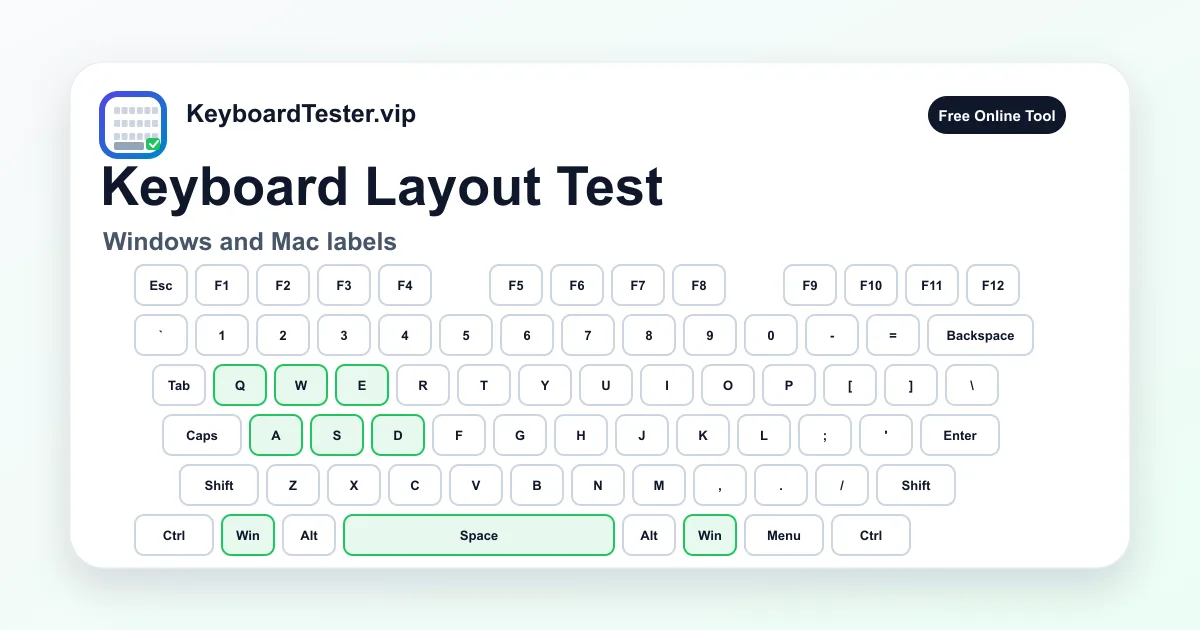
This keyboard layout test helps compare the physical key position with Windows-style and Mac-style labels. It is especially useful when punctuation symbols type the wrong character, Alt and Option feel swapped, Command and Win labels do not match, or a UK, US, ISO, ANSI, JIS, laptop, or compact keyboard does not look like the on-screen reference.
Use the keyboard layout test before replacing hardware. If a key lights up consistently but the symbol is different, check language settings, input method, keyboard layout, remap tools, and modifier behavior first. If the key never lights up at all, move back to the keyboard checker or key tester because that is a detection problem rather than a layout problem.
Quick diagnostic checklist
- 1
Run the keyboard layout test with the page focused and confirm normal letter keys register first.
- 2
Switch between Windows and Mac label modes when modifier names do not match the printed legends.
- 3
Test punctuation keys such as brackets, slash, backslash, semicolon, quote, minus, equals, comma, and period.
- 4
Compare US and UK expectations for quote, at sign, hash, backslash, pound, and Enter-key shape.
- 5
Check left and right Alt, Option, Command, Win, Ctrl, and Shift positions separately.
- 6
If symbols still mismatch, inspect the operating system language, input source, keyboard layout, and remapping software.
Step-by-step key test order
- 1
Confirm the key physically registers
Start the keyboard layout test by pressing A, Space, Enter, and a few number-row keys. Make sure the on-screen keyboard responds before judging layout output.
Watch for: If ordinary keys do not light up, you have a focus, connection, or hardware detection problem. Solve that before using the keyboard layout test for symbols.
- 2
Switch platform labels
Use the Windows and Mac label switch, then compare Win, Command, Alt, Option, Ctrl, Menu, and Meta-style positions against the physical keyboard.
Watch for: The same physical modifier may have different printed labels. A keyboard layout test should clarify labels without pretending the key is broken.
- 3
Test punctuation and number-row symbols
Press the quote, semicolon, bracket, backslash, slash, minus, equals, comma, period, backtick, and number-row symbol keys.
Watch for: Wrong symbols usually point to US versus UK, ISO versus ANSI, input language, AltGr, Option, or remap settings rather than a failed switch.
- 4
Compare regional key positions
Look at the Enter shape, left Shift size, extra key near left Shift, backslash position, and punctuation layout before assuming the visualizer is wrong.
Watch for: ISO and JIS keyboards can include extra keys or moved symbols. The keyboard layout test is a reference, not a replacement for regional layout settings.
- 5
Check modifier combinations
Hold Shift, Alt, AltGr, Option, Command, or Win while pressing the symbol keys that feel wrong in your normal apps.
Watch for: Modifier layers can produce extra characters, accents, dead keys, or system shortcuts. Record whether the mismatch happens alone or only with a modifier.
- 6
Change one software setting and retest
Switch the operating system keyboard layout or input source, then repeat the same keyboard layout test sequence with the same physical keys.
Watch for: If the output changes predictably after a layout change, the keyboard is likely healthy and the issue is configuration.
Coverage zones to verify
Platform modifiers
Win, Command, Option, Alt, Ctrl, Menu, Meta
The keyboard layout test helps match Windows and Mac-style modifier names to the physical keys you actually press.
Number-row symbols
1-0, Shift symbols, backtick, minus, equals
These keys reveal many US, UK, and international layout mismatches because the shifted symbols vary by region.
Punctuation block
Quote, semicolon, brackets, backslash, slash, comma, period
Punctuation is where a keyboard layout test catches wrong characters that ordinary A-Z typing will not reveal.
ANSI and ISO shape clues
Enter shape, left Shift size, extra key near left Shift, backslash position
Physical shape clues help separate a regional layout mismatch from a bad key or incorrect visual expectation.
Mac input source checks
Command, Option, Shift, dead keys, accent keys
Mac layouts can expose alternate characters through Option and dead-key behavior, so modifier layers need their own check.
Windows language checks
US, UK, International, AltGr, input language switch
Windows input settings can make a healthy keyboard type unexpected symbols while the physical layout still works.
When a keyboard layout test is the right tool
Use a keyboard layout test when the keyboard is detected but the output does not match the label. Common examples include quote and at sign swapping, backslash moving, pound or hash symbols missing, Mac Command and Option labels feeling reversed on Windows, or shortcuts changing after a language switch.
A keyboard layout test should not be used as the first proof of a dead key. If a key never appears in the on-screen keyboard, run a keyboard checker or key tester first. If the key appears but the character in your app is unexpected, then the keyboard layout test is the better diagnostic page.
US, UK, ANSI, ISO, and JIS differences
Many layout problems come from mixing physical keyboard standards with software input settings. ANSI keyboards usually have a wide rectangular Enter key and a longer left Shift. ISO keyboards commonly have a taller Enter key and an extra key near left Shift. JIS keyboards add more keys for Japanese input and can look very different from a US reference.
The keyboard layout test helps you notice those physical clues before you blame a switch. A US keyboard set to a UK layout, or a UK keyboard set to a US layout, can register every key correctly while still producing confusing symbols in email, code, passwords, and shortcuts.
Windows and Mac modifier labels
Windows keyboards usually show Win and Alt, while Mac keyboards show Command and Option. Browser events can also use Meta terminology. A keyboard layout test makes those label differences visible so you can decide whether the issue is a real failure or only a platform-label mismatch.
When using a Mac keyboard on Windows, or a Windows keyboard on macOS, test both the printed label and the behavior. If Command acts like Win or Option acts like Alt, the physical key may be working exactly as the operating system maps it.
Why symbols type wrong characters
Wrong symbols usually come from software configuration. Check the operating system keyboard layout, input language, international layout, AltGr behavior, Option layers, dead-key settings, browser focus, and remap utilities before replacing parts. A keyboard layout test can show that the physical position is stable while the character output changes with settings.
Developers, writers, and multilingual users should pay special attention to punctuation. Brackets, braces, slash, backslash, quote, semicolon, backtick, minus, equals, and currency symbols are more likely to vary by layout than ordinary letters.
What to do after the layout mismatch is confirmed
Once the keyboard layout test confirms a mismatch, change only one setting at a time. Switch from US to UK, remove an unused input source, disable a remap utility, reset vendor keyboard software, or test in another browser. Then repeat the same keys so the result is comparable.
If the mismatch follows a software setting, document the correct layout and keep using the keyboard. If a key fails regardless of every layout setting, treat it as a hardware or firmware problem and move to a focused key tester, keyboard checker, ghosting test, or double type test depending on the symptom.
How to interpret failed keys
| Result | Likely cause | Next step |
|---|---|---|
| The key lights up but the typed symbol is wrong | Operating system layout, input language, US/UK mismatch, AltGr, Option layer, or remap tool | Change the OS keyboard layout once, repeat the keyboard layout test, and compare the same physical key again. |
| Mac labels do not match Windows labels | Command, Option, Win, Alt, and Meta names differ across platforms even when the physical key works | Use the platform label switch and test the modifier in a safe shortcut before assuming hardware failure. |
| Only punctuation keys feel wrong | Regional layout mismatch, international layout, dead-key behavior, or shifted-symbol differences | Test brackets, slash, backslash, quote, semicolon, minus, equals, and number-row symbols in the same order. |
| A key never lights up in any layout | Hardware detection issue, broken switch, laptop mechanism, cable, battery, or browser focus problem | Leave the keyboard layout test and run a key tester or keyboard checker to confirm physical input first. |
| The mismatch appears only in one app | App shortcut, editor keymap, remote desktop capture, browser extension, or input method behavior | Use the keyboard layout test as the baseline, then inspect that app keymap or shortcut settings. |
| The mismatch changes after switching input source | The keyboard is probably healthy and the operating system layout is controlling character output | Keep the correct input source, remove unused layouts, and document the expected symbol map. |
FAQ
What does a keyboard layout test check?
A keyboard layout test checks whether the physical key position, printed label, platform modifier name, and operating system character output line up. It is mainly for wrong symbols and label mismatches, not for dead-key hardware diagnosis.
Can this keyboard layout test detect ANSI versus ISO?
It can help you compare shape clues such as Enter, left Shift, and the extra key near left Shift. Automatic detection is limited in a browser, so you still need to compare the on-screen reference with your physical keyboard.
Why does my keyboard type @ when I press quote?
That is a classic US versus UK or input-source mismatch. Run the keyboard layout test, check the OS keyboard layout, then repeat the same quote and number-row keys after switching to the correct layout.
Why does my Mac keyboard show Command and Option instead of Win and Alt?
Mac keyboards use Command and Option labels where Windows keyboards often show Win and Alt. The same physical key can still send a related modifier event, so use the label switch to compare platform naming.
Do wrong symbols mean my keyboard is broken?
Usually no. If every key lights up but symbols are wrong, the likely cause is software layout, input language, international layout, AltGr, Option, or remapping. Hardware is more likely when the key never registers.
Can a keyboard layout test check laptop keyboards?
Yes. Laptop keyboards can be checked, but compact layouts may omit keys or move symbols. Use the test to compare the keys that exist on your laptop rather than forcing a full-size layout match.
What should I do if only one app types the wrong character?
If the keyboard layout test and other apps behave correctly, inspect that app keymap, shortcut settings, language mode, remote desktop capture, terminal profile, or browser extension before changing system layout.
Does this test change my keyboard layout?
No. The keyboard layout test only displays what the browser receives. To change the actual layout, use Windows language settings, macOS input sources, or your keyboard vendor software.
Should I run a full keyboard checker too?
Yes if any key fails to light up. Use the keyboard layout test for label and symbol mismatches, then use the keyboard checker for full physical coverage and the key tester for one suspicious key.