
Keyboard Typing Wrong Characters guide
Keyboard typing wrong characters usually means the keyboard still sends input, but the operating system, app, layout, modifier state, or hardware layer turns that input into the wrong output. That is different from a dead key. A dead key does not register. A wrong-character problem registers something, just not the symbol or letter printed on the keycap.
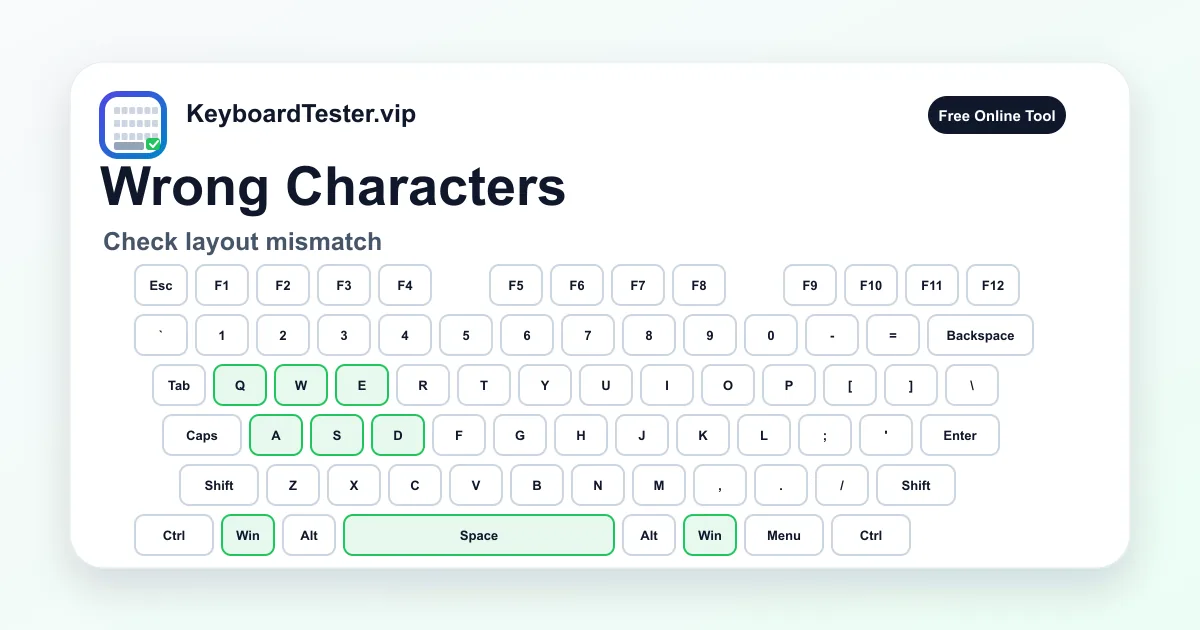
The most common cause is a layout mismatch. A US keyboard, UK keyboard, ISO keyboard, ANSI keyboard, German QWERTZ board, French AZERTY board, Dvorak layout, or international input source can all put symbols in different places. If @, quotation marks, slash, brackets, Y/Z, or punctuation are wrong, check layout before replacing hardware.
Use the live tester first. It shows whether the physical key position is detected by the browser. Then compare that with what appears in a text editor. If the physical key lights correctly but text output is wrong, keyboard typing wrong characters is more likely a software layout, input source, modifier, or remap problem.
If keyboard typing wrong characters started suddenly, look for what changed right before it happened: a language switch, shortcut, remote desktop session, new keyboard utility, game profile, or accessibility prompt.
Hardware is still possible. A stuck Shift, Alt, Ctrl, Option, Fn layer, numpad mode, liquid residue, or damaged keyboard matrix can make many keys output strange characters. This guide separates layout issues from stuck modifiers, remapping tools, laptop numpad behavior, and real hardware faults.
Quick diagnostic checklist
- 1
Click inside the tester and press the key that produces the wrong character.
- 2
Compare the tester label with the character that appears in a plain text editor.
- 3
Check whether @ and quotation marks are swapped, Y and Z are swapped, or punctuation symbols moved.
- 4
On Windows, check the active keyboard layout and remove layouts you do not use.
- 5
On Mac, check Keyboard > Input Sources and confirm the selected source matches the physical keyboard.
- 6
Press and release Shift, Alt, Ctrl, Win, Command, Option, Fn, and Caps Lock to rule out a stuck modifier state.
- 7
Turn Num Lock and Mouse Keys off if letters produce numbers or the numpad behaves like pointer control.
- 8
Temporarily disable remapping, macro, keyboard manager, game overlay, and remote desktop tools.
- 9
If keyboard typing wrong characters remains after layout changes, compare the same keyboard on another device.
- 10
Test an external keyboard if a laptop keyboard keeps producing wrong symbols after settings are corrected.
Step-by-step key test order
- 1
Compare key position with text output
Press the suspect key in the tester, then press it in a plain text field. Record the physical key, the tester label, and the character that appears.
Watch for: If the tester sees the expected key but the typed symbol is different, keyboard typing wrong characters is more likely layout or software than a dead switch.
- 2
Look for a known layout mismatch
Check common clues: @ and quotation marks swapped, slash and backslash moved, # or pound signs missing, Y and Z swapped, or punctuation on different number-row keys.
Watch for: These patterns usually mean US versus UK, ANSI versus ISO, QWERTY versus QWERTZ, AZERTY, Dvorak, or an international layout mismatch.
- 3
Fix the active Windows layout
Open Windows language and keyboard settings, choose the layout that matches the physical keyboard, and remove extra layouts that you never use.
Watch for: Windows can switch layouts with language shortcuts or the taskbar input indicator. Keyboard typing wrong characters after a shortcut is often just the wrong active layout.
- 4
Fix the active Mac input source
Open macOS Keyboard settings, check Input Sources, select the source that matches the printed keys, and show the input menu if you need a visible indicator.
Watch for: A Mac can type unexpected symbols when another input source is active. Keyboard typing wrong characters on Mac is often fixed before hardware repair is needed.
- 5
Clear stuck modifier and lock states
Tap Shift, Alt, Ctrl, Option, Command, Win, Fn, Caps Lock, and Num Lock. Watch the tester for keys that stay highlighted or change many outputs.
Watch for: If many characters look shifted, accented, uppercase, or command-like, a modifier state or accessibility feature may be involved.
- 6
Disable remaps and app-level overrides
Pause keyboard remappers, macro utilities, game overlays, browser extensions, remote desktop mapping, and vendor keyboard software, then retest.
Watch for: If the issue disappears after disabling a tool, keyboard typing wrong characters was caused by software translation rather than the physical keyboard.
- 7
Check hardware only after software patterns fail
Test another keyboard on the same computer and test the suspect keyboard on another device. Inspect for stuck keys, liquid residue, or damaged laptop mechanisms.
Watch for: Hardware becomes more likely when the same wrong output follows the keyboard across devices or when modifiers remain active after release.
Coverage zones to verify
Layout-sensitive punctuation
@, quotation marks, #, pound sign, slash, backslash, brackets, semicolon, apostrophe
These keys expose US, UK, ISO, ANSI, and international layout mismatches faster than ordinary letter typing.
Letter swaps and regional layouts
Y, Z, Q, A, M, W and other layout-dependent positions
QWERTZ, AZERTY, Dvorak, Colemak, and language-specific layouts can make letter keys look wrong even when the hardware is healthy.
Modifier and lock states
Shift, Alt, Ctrl, Option, Command, Win, Fn, Caps Lock, AltGr
A stuck or software-held modifier can change many outputs at once and can make keyboard typing wrong characters look random.
Numpad and embedded keypad behavior
Num Lock, laptop embedded numpad, keypad operators, Mouse Keys
Numbers replacing letters or numpad keys moving the pointer often comes from Num Lock, Mouse Keys, or a laptop embedded keypad layer.
Remap and macro layer
Keyboard manager profiles, game mode, vendor software, macro layers, remote desktop mapping
Software can translate a correct physical key into another output, especially after profile changes, shortcuts, or remote sessions.
Hardware warning signs
Stuck modifiers, repeated random symbols, spill zones, keys that trigger together
Hardware is more likely when wrong characters appear with stuck key states, liquid damage, multiple simultaneous triggers, or behavior that follows the keyboard to another computer.
Layout mismatch is the most common cause
Keyboard typing wrong characters is most often a layout problem, not a broken keyboard. The physical key position can be correct while the operating system interprets it through the wrong language or regional layout. That is why @, quotation marks, slash, brackets, and number-row symbols are the best first clues.
A US keyboard and UK keyboard look similar but place several symbols differently. ISO and ANSI boards have different key shapes and positions. QWERTZ swaps Y and Z. AZERTY moves several letters and symbols. Dvorak and Colemak intentionally rearrange many keys. If the mismatch follows a known layout pattern, fix the input source first.
Use the tester to confirm the key position, then use a text editor to confirm output. If the tester shows the physical key you pressed, keyboard typing wrong characters is probably happening after the key event reaches the operating system.
Windows checks for wrong characters
On Windows, inspect Time & language, Language & region, Typing, and the keyboard layout attached to your language. If more than one layout is installed, Windows can switch between them through the taskbar input indicator or shortcuts such as Windows + Space or Alt + Shift, depending on configuration.
If keyboard typing wrong characters started suddenly, look for an accidental layout switch. Remove layouts you do not use, choose the correct default input method, and retest @, quotation marks, slash, brackets, Y/Z, and number-row symbols.
Also check PowerToys Keyboard Manager, vendor keyboard apps, game mode profiles, remote desktop sessions, and input method editors. These tools can make one program type different characters while the rest of Windows behaves normally.
Mac checks for wrong symbols and input sources
On Mac, open Keyboard settings and check Input Sources. Make sure the active input source matches the physical keyboard and the language you actually type in. Showing the input menu in the menu bar helps you see when macOS switches sources.
Keyboard typing wrong characters on Mac often appears as unexpected symbols, swapped letters, or accented characters. If another input source is active, the hardware can be fine while macOS maps the key to a different output.
Also check accessibility settings and modifier behavior. Slow Keys, Mouse Keys, custom shortcuts, Option-key characters, and third-party keyboard utilities can all change how a key press becomes text.
Modifier, lock, and numpad problems
A stuck modifier can make the whole keyboard look broken. Shift changes letters and symbols, Alt or Option can create alternate characters, Ctrl and Command can trigger shortcuts, and AltGr can expose international symbols. If many outputs change at once, test modifiers before changing layouts.
Numbers replacing letters usually points to Num Lock, an embedded laptop numpad, or Mouse Keys. Compact keyboards can hide arrows, symbols, and numpad actions behind Fn layers. Keyboard typing wrong characters on a laptop can be a mode issue rather than a failed key.
Remapping and app-specific causes
If the problem happens only inside one app, browser, game, or remote desktop session, treat it as an app-level translation problem first. A game keybind, extension, remote desktop keyboard layout, macro layer, or vendor profile may be changing the output after the hardware works correctly.
The fastest test is simple: type the same key in a plain text editor, then in the problem app. If only one app is wrong, reset that app profile, disable overlays, check shortcuts, and test another browser or user profile before replacing hardware.
When wrong characters indicate hardware
Hardware becomes more likely when modifiers stay active after release, random keys trigger together, output changes after a spill, or the same wrong characters follow the keyboard to another computer. In those cases, keyboard typing wrong characters may be caused by residue, corrosion, matrix damage, or a stuck switch.
If keyboard typing wrong characters follows one physical keyboard to multiple devices after layouts are confirmed, treat it as a hardware or firmware problem rather than an operating-system setting.
For mechanical keyboards, inspect stuck modifiers, stabilizers, switches, hot-swap sockets, and firmware layers. For laptop keyboards, compare an external keyboard first. If the external keyboard types correctly but the built-in keyboard keeps producing wrong output after settings are fixed, service may be needed.
How to interpret failed keys
| Result | Likely cause | Next step |
|---|---|---|
| @ and quotation marks are swapped | The active layout usually does not match the physical keyboard, commonly US versus UK or another English layout mismatch. | Change the Windows layout or Mac input source to match the printed keyboard, then retest the same symbols. |
| Y and Z are swapped | A QWERTZ layout such as German may be active while the physical keyboard is QWERTY, or the opposite. | Select the correct language/input source and remove unused layouts if accidental switching keeps happening. |
| Letters type numbers or numpad actions | Num Lock, an embedded laptop keypad, Mouse Keys, or a compact keyboard layer is changing the output. | Turn off Num Lock or Mouse Keys and check the keyboard manual for embedded keypad or Fn-layer behavior. |
| Everything becomes uppercase or symbols | Caps Lock, stuck Shift, Sticky Keys, a held modifier, or a hardware modifier fault is changing many keys. | Tap modifiers, check accessibility settings, and watch the tester for modifier keys that remain active after release. |
| Only one app types wrong characters | The app may have custom shortcuts, an extension, an input method, a remote desktop map, or a game profile overriding keys. | Test in a plain text editor, reset app shortcuts, disable extensions or overlays, and compare another user profile if needed. |
| The tester sees the key but text is wrong | The physical key event is detected correctly, but the operating system or app converts it using the wrong layout or remap. | Fix input source, layout, and remap settings before replacing keycaps, switches, or laptop parts. |
| Random wrong characters after a spill | Liquid residue, corrosion, or a damaged matrix may trigger multiple contacts or stuck modifier behavior. | Stop repeated testing, power down when possible, dry and inspect safely, then compare with an external keyboard. |
FAQ
Why is my keyboard typing wrong characters?
Keyboard typing wrong characters usually means the physical key is detected but the active layout, input source, modifier state, remapping tool, or app converts it into a different output. Check layout and input source before replacing hardware.
Why does @ type as a different symbol?
This commonly happens when the active keyboard layout does not match the physical keyboard, such as US versus UK. Check the Windows keyboard layout or Mac input source and retest @ and quotation marks.
Why are Y and Z swapped on my keyboard?
Y and Z swapped usually means a QWERTZ layout is active while you expect QWERTY, or the reverse. Select the correct language and keyboard layout, then remove unused layouts if accidental switching keeps returning.
Can Num Lock make letters type numbers?
Yes. Some laptops and compact keyboards have an embedded numpad layer. Num Lock, Fn layers, or Mouse Keys can make letters or numpad keys produce unexpected numbers or pointer actions.
Can a stuck Shift key cause wrong characters?
Yes. A stuck Shift key can make letters uppercase and turn number-row keys into symbols. A stuck Alt, Option, Ctrl, Command, or AltGr state can also change output or trigger shortcuts.
Why does the tester show the right key but the typed character is wrong?
That means the browser sees the physical key event, but the operating system or app converts it through the active layout or remap. Keyboard typing wrong characters in this pattern is usually software configuration, not a dead key.
Should I reinstall drivers first?
Usually no. Check layout, input source, modifier state, Num Lock, accessibility settings, and remapping software first. Drivers are more relevant if multiple keyboards fail or the device disconnects entirely.
Can liquid damage cause wrong characters?
Yes. Liquid residue or corrosion can trigger multiple contacts, stuck modifiers, or random symbols. If keyboard typing wrong characters began after a spill, stop repeated testing and inspect or service the keyboard safely.
How do I know if it is hardware or software?
Test the same key in the online tester, a plain text editor, another app, and another device if possible. If the wrong output follows the keyboard across devices, hardware is more likely. If it changes by app or layout, software is more likely.