
Backspace Key Not Working guide
Backspace key not working problems are urgent because the key is used constantly for writing, coding, search, passwords, spreadsheets, and forms. A failure can mean the key never fires, deletes too slowly, repeats too aggressively, gets stuck, or works in one app but not another.
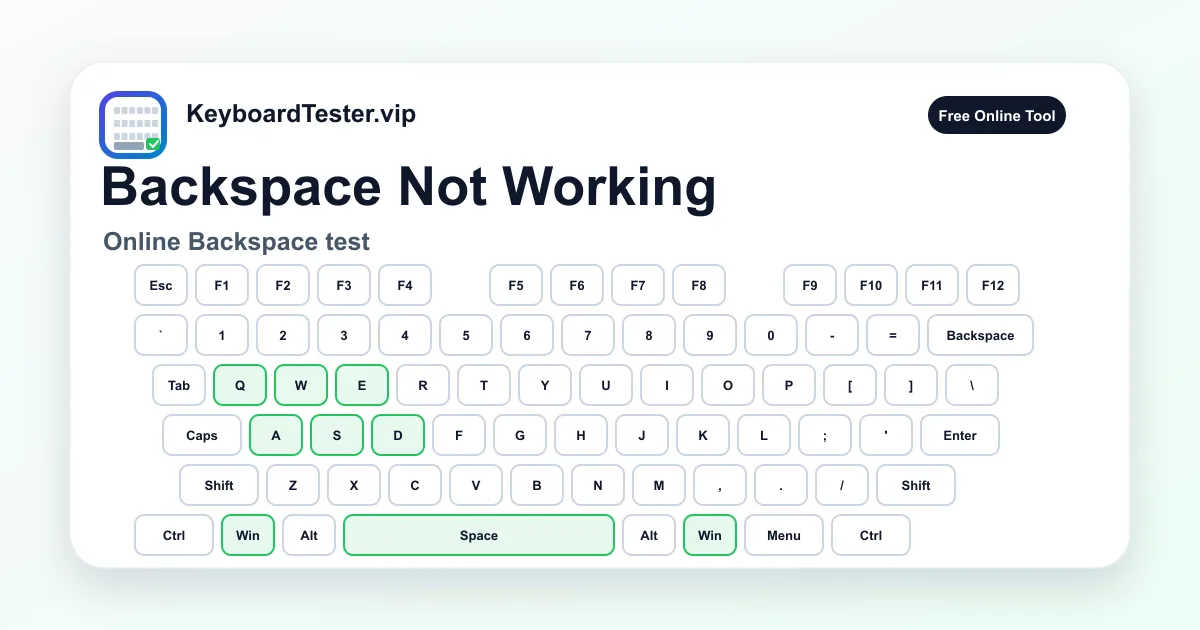
Use the live tester first to confirm whether the browser receives Backspace as a key event. Then compare a single tap, a short hold, a longer hold, release behavior, and text-field behavior. This separates backspace key not working hardware symptoms from app focus, shortcut capture, extensions, accessibility filters, and operating system repeat settings.
Backspace is also different across platforms. Windows keyboards usually label it Backspace, while many Mac keyboards label the same left-delete action as Delete. If backspace key not working appears on a Mac, confirm whether the key label, browser event, and app command are describing the same action before replacing hardware.
A good diagnosis moves from safe software checks to hardware checks. First prove whether the event appears in the tester. Then test deletion in a plain text field, compare other editing keys, inspect repeat behavior, check settings, and only then remove keycaps or replace parts.
Quick diagnostic checklist
- 1
Click inside the tester and press Backspace once. The highlighted key and last-key panel should update immediately.
- 2
Hold Backspace for one second, release it, and confirm the active state clears instead of staying stuck.
- 3
Open a plain text field, type a few letters, and check whether Backspace deletes exactly one character per tap.
- 4
If deletion is very slow or too fast, review operating system key repeat delay and repeat rate.
- 5
If backspace key not working happens only in one browser or web app, check focus, extensions, shortcuts, and form restrictions.
- 6
If Backspace works here but Delete does not, test the Delete key separately because they are different keys on many layouts.
- 7
If a laptop key feels loose, hard to press, or uneven, avoid forceful keycap removal until you know the model supports it.
- 8
If the issue started after cleaning, check for debris, a shifted keycap, or stabilizer travel before replacing hardware.
- 9
Compare an external keyboard or another user profile when backspace key not working persists across apps.
Step-by-step key test order
- 1
Confirm Backspace event detection
Click inside the tester, press Backspace once, and watch the highlighted key, last-key panel, and key history.
Watch for: If Backspace never appears after the page is focused, backspace key not working is a real input symptom. Retest once in another browser before assuming hardware failure.
- 2
Test hold and release behavior
Hold Backspace briefly, release it, then repeat with a longer hold in a plain text field containing test letters.
Watch for: A key that stays active after release points toward sticky residue, switch return failure, keycap friction, or an accessibility/repeat setting that is changing behavior.
- 3
Separate Backspace from Delete
Press Backspace, then press Delete if your keyboard has a separate Delete key. On Mac, note whether your keyboard label says Delete while the behavior is backspace-style deletion.
Watch for: Backspace deletes left of the cursor, while Delete often deletes right of the cursor. A failure in one key does not automatically mean the other is broken.
- 4
Compare tester and text-field deletion
Use this tester to verify the key event, then type ABC123 in a plain text field and press Backspace one tap at a time.
Watch for: If the event appears but text does not delete, the issue is likely focus, read-only fields, browser behavior, form script handling, or app shortcuts.
- 5
Check app-specific shortcuts and extensions
Try the same key in a browser address bar, a simple editor, the affected app, and a private/incognito window with extensions disabled if possible.
Watch for: Backspace key not working in one app can come from shortcut capture, editor modes, browser extensions, remote desktop input, or a web app that blocks deletion.
- 6
Review accessibility and repeat settings
Check Sticky Keys, Filter Keys, Slow Keys, key repeat delay, repeat rate, and keyboard remapping or macro tools.
Watch for: If other keys also need long presses, repeat too slowly, or behave inconsistently, settings are more likely than a single broken Backspace switch.
- 7
Inspect mechanical travel safely
For mechanical keyboards, remove the keycap only if safe, then inspect the switch, stabilizer, and debris. For laptops, avoid prying unless the model supports key removal.
Watch for: Backspace key not working after cleaning or keycap replacement often points to seating, stabilizer alignment, clips, debris, or a damaged switch contact.
- 8
Compare another keyboard or environment
Test an external keyboard, another USB port, wired mode, another browser, another user account, or another computer if available.
Watch for: Hardware becomes more likely when the same keyboard fails everywhere. Software becomes more likely when multiple keyboards fail only in the same app or profile.
Coverage zones to verify
Single-tap detection
Backspace one tap, key history, last-key panel
This confirms whether the browser receives a clean Backspace event before you diagnose text deletion or repeat behavior.
Hold and repeat behavior
Short hold, long hold, release, repeat delay, repeat rate
Backspace key not working can mean slow repeat, runaway repeat, or no repeat at all. These symptoms need different fixes.
Text-field deletion
Plain text field, browser address bar, affected app, read-only fields
A key event can be visible while text still does not delete. That points to app focus, field state, shortcut handling, or extensions.
Backspace vs Delete mapping
Backspace, Delete, Mac Delete label, Fn+Delete if available
Platform labels can confuse diagnosis. Test the exact delete direction and key event before replacing hardware.
Wide-key mechanics
Backspace center press, left edge, right edge, stabilizer, laptop clips
Some Backspace keys are wide enough to use stabilizers. Uneven edge behavior suggests mechanical travel or seating issues.
Software filters
Sticky Keys, Filter Keys, Slow Keys, key remappers, macros, browser extensions
Input filters can make a healthy key feel dead, delayed, or stuck. Check them before opening hardware.
Why Backspace can fail in different ways
Backspace key not working does not describe one single failure. It can mean the browser never receives Backspace, the key appears but text does not delete, deletion repeats too slowly, one tap deletes several characters, or the key gets stuck after release. Each pattern points to a different repair path.
The tester is useful because it isolates the key event from the editor. If Backspace lights up here, the hardware is at least sending an event to the browser. If deletion still fails elsewhere, look at focus, read-only fields, app shortcuts, browser extensions, remote sessions, and input filters.
If Backspace does not appear in the tester and also fails in normal apps, the diagnosis shifts toward connection, firmware, switch, laptop mechanism, membrane, or keyboard controller problems.
Backspace, Delete, and Mac keyboard labels
On Windows keyboards, Backspace usually deletes the character to the left of the cursor and Delete deletes the character to the right. On many Mac keyboards, the key labeled Delete performs the Backspace-style action. This naming difference can make a backspace key not working report sound more confusing than it is.
If you are testing a Mac or compact keyboard, press the physical key, watch the event label, and then test the actual text-deletion direction. Some Mac shortcuts also use Fn+Delete for forward delete behavior, which is separate from the Backspace-style delete action.
Do not replace a key because the label looks unexpected. Confirm the browser event, the text result, and the platform behavior first.
Repeat delay, repeat rate, and accessibility filters
Backspace is often held down, so repeat settings matter more than they do for many other keys. A long repeat delay can make deletion feel stuck, while a very fast repeat rate can erase more text than expected. Slow Keys and Filter Keys can also make short taps seem ignored.
If backspace key not working feels like slow deletion rather than a dead key, check repeat delay and repeat rate before opening the keyboard. If other keys also require longer presses or feel filtered, the cause is probably system settings rather than one broken switch.
After changing settings, test with single taps and controlled holds. This separates normal operating system repeat from switch chatter and stuck-key behavior.
Mechanical checks for wide Backspace keys
Some Backspace keys are wide and may use a stabilizer. If the center press works but an edge press fails, the issue may be uneven travel, stabilizer seating, a loose keycap, or debris under one side. If every press fails, inspect switch, socket, membrane, or connection patterns.
For mechanical keyboards, unplug the board before cleaning, remove keycaps only when safe, and avoid bending stabilizer wires. For laptops, be conservative because Backspace clips and scissor hinges can break if pried from the wrong angle.
Backspace key not working after keycap replacement often means the keycap or stabilizer is not seated correctly. Retest the center and edges after reseating before ordering new parts.
When one app blocks Backspace
Backspace has a long history of app-specific behavior. It may navigate browser history in old workflows, delete selected content, exit modes in editors, trigger game actions, or be blocked by form scripts. A web app can prevent deletion even when the key event is visible.
If the tester and a plain editor both see Backspace, but one app ignores it, disable extensions, try a private window, reset keyboard shortcuts, and test focus inside the field. Backspace key not working in only one app is usually not a hardware repair case.
Remote desktop and virtual machine sessions can add another layer. Test both the host and guest environment before blaming the physical keyboard.
Repair decisions and evidence to keep
Before replacing parts, record what failed: single tap, hold, release, edge press, text-field deletion, repeat speed, and whether another keyboard works. Those notes help you avoid replacing a keyboard for a software-only issue.
Mechanical keyboard users may be able to clean around the switch, reseat a stabilizer, replace a hot-swap switch, or test the PCB socket. Laptop users should avoid invasive removal unless there is a model-specific guide or warranty path.
Replacement becomes more reasonable when backspace key not working persists across browsers, apps, user profiles, operating system sessions, and external comparisons after settings and safe cleaning are checked.
How to interpret failed keys
| Result | Likely cause | Next step |
|---|---|---|
| Backspace never appears in the tester | The key event is not reaching the browser because of hardware failure, connection issues, focus loss, input filtering, or a blocked key layer. | Refocus the page, try another browser, compare an external keyboard, and inspect hardware only if the failure repeats everywhere. |
| Backspace appears but does not delete text | The text field may be read-only, unfocused, controlled by app scripts, or using shortcut behavior that intercepts Backspace. | Test in a plain text editor and browser address bar, then inspect the affected app settings or extensions. |
| Backspace deletes too slowly when held | Repeat delay, repeat rate, Slow Keys, Filter Keys, or an accessibility setting may be making the key feel broken. | Adjust operating system keyboard repeat settings and disable input filters temporarily to retest. |
| Backspace deletes multiple characters from one tap | Switch chatter, dirty contact, unstable keycap travel, repeat settings, or firmware debounce can mimic backspace key not working. | Use the Double Type Test, test single taps slowly, and inspect the switch or stabilizer if duplicates persist. |
| Backspace stays active after release | Sticky residue, debris, bent stabilizer, keycap friction, a worn switch, or a software repeat state may be involved. | Stop forceful pressing, clean safely, check release behavior in the tester, and avoid laptop key removal unless supported. |
| Only Backspace fails while nearby keys work | A local switch, scissor mechanism, keycap mount, membrane contact, or remapped shortcut is more likely than a full keyboard failure. | Test Backspace, Delete, Enter, and nearby keys, then compare hardware behavior with software mapping. |
| Backspace fails only in one browser or app | Extensions, editor modes, web app scripts, keyboard shortcuts, remote desktop capture, or focus state are likely causes. | Disable extensions, test private mode, reset app key bindings, and compare a plain editor before repairing hardware. |
FAQ
Why does Backspace appear in the tester but not delete text?
The browser may receive the key event while the text field is read-only, unfocused, controlled by app scripts, or using shortcuts that intercept Backspace. Test in a plain text editor before assuming hardware failure.
Why does Backspace delete multiple characters?
It may be normal key repeat, a very fast repeat-rate setting, switch chatter, dirty contacts, or firmware debounce. Use the Double Type Test to separate repeated taps from normal held-key repeat.
Why is Backspace slow when I hold it down?
Slow deletion usually points to repeat delay, repeat rate, Slow Keys, Filter Keys, or another accessibility setting. Adjust settings and retest before repairing hardware.
Is Backspace the same as Delete on Mac?
Many Mac keyboards label the Backspace-style key as Delete. It usually deletes left of the cursor, while forward delete may require Fn+Delete or a separate Delete key depending on the keyboard.
Can a browser extension cause backspace key not working?
Yes. Extensions, web apps, editors, and shortcut managers can intercept Backspace. Try private mode or disable extensions temporarily to compare behavior.
Should I remove the Backspace keycap?
Only if your keyboard supports safe keycap removal. Mechanical keyboards are usually safer to inspect than laptop keys. Laptop clips can break easily if pried from the wrong side.
Why does Backspace work only when I press hard?
That usually points to mechanical travel, switch contact, membrane contact, keycap seating, or stabilizer alignment. Compare center and edge presses in the tester.
How do I know if backspace key not working is software?
If Backspace works in this tester and a plain text editor but fails in one app, software is likely. If it fails everywhere and another keyboard works, hardware is more likely.
When should I replace the keyboard?
Consider replacement when Backspace fails across browsers, apps, user profiles, and devices after focus, settings, extensions, repeat behavior, and safe cleaning are checked.