
Windows Key Tester guide
A Windows key tester is different from a normal letter-key check because the Win key is handled by the operating system, browser, keyboard firmware, gaming software, and sometimes remote desktop tools. A missed Win key event can mean a bad physical key, but it can also mean Win Lock, game mode, a disabled shortcut policy, or a layout mismatch.
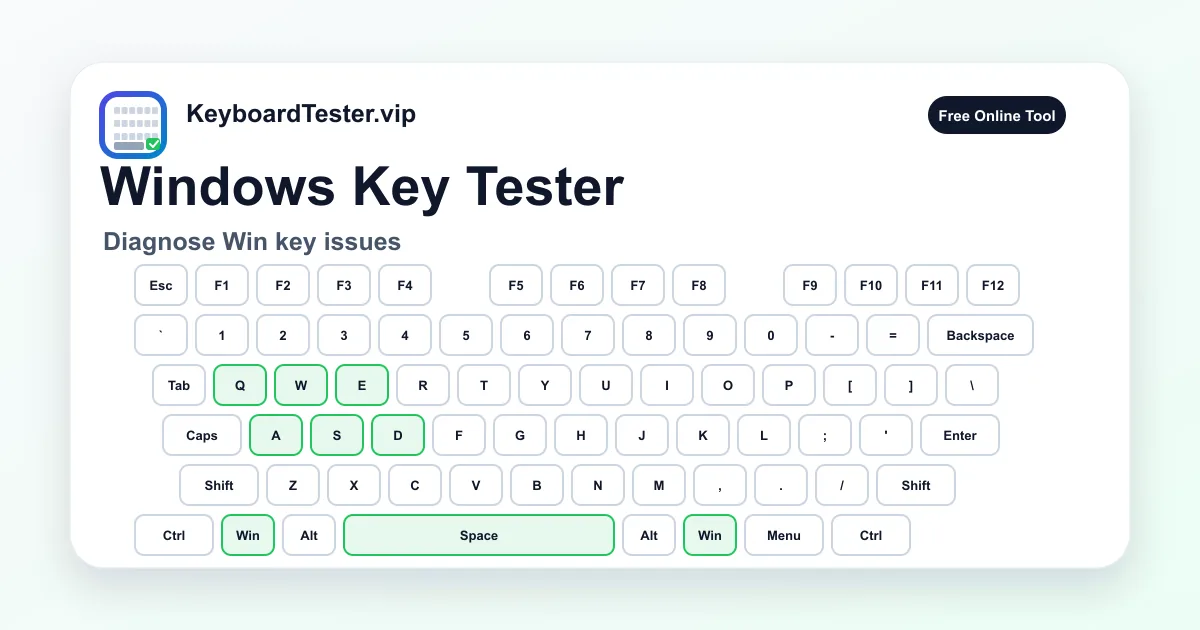
This Windows key tester focuses on the keyboard key, not a Windows product key or license code. Press the left Win key and right Win key separately, watch the on-screen keyboard, then compare the result with normal Start menu and shortcut behavior. That gives you a cleaner baseline before changing Windows settings.
Use the Windows key tester before replacing a keyboard, before reinstalling drivers, after enabling gaming mode, after a firmware update, or when Win shortcuts such as Win + D, Win + L, Win + Tab, Win + E, or Win + R feel unreliable. The goal is to separate hardware input from operating system behavior.
Quick diagnostic checklist
- 1
Click the Windows key tester page once so the browser has focus before pressing Win.
- 2
Press the left Win key by itself and confirm the matching Win or Meta key lights up.
- 3
Press the right Win key separately if your keyboard includes one.
- 4
Disable Win Lock, Game Mode, or vendor gaming profiles before assuming the key is broken.
- 5
Compare browser detection with Start menu behavior and common shortcuts such as Win + E or Win + R.
- 6
If Win works alone but a shortcut fails, move to the ghosting test or inspect Windows shortcut settings.
Step-by-step key test order
- 1
Confirm the page has focus
Click inside the Windows key tester, then press an ordinary key such as A or Space to confirm the tester is receiving keyboard input.
Watch for: If ordinary keys do not light up, the issue is page focus, browser permission, or another active window rather than the Win key itself.
- 2
Test the left Win key alone
Press and release the left Win key once. The Windows key tester should show the left Windows-position key as active or record a Meta-style event.
Watch for: If the Start menu opens but the tester does not show input, the operating system may be consuming the key before the browser sees it.
- 3
Test the right Win key separately
If your keyboard has a right Win key, press it separately instead of assuming both Win keys share the same fault.
Watch for: One side can fail while the other side works. That points to a local switch, socket, membrane, or layout-specific issue.
- 4
Check Win Lock and game mode
Look for a lock icon, game mode indicator, Fn plus Win shortcut, or vendor utility profile. Disable it, then run the Windows key tester again.
Watch for: A gaming keyboard can intentionally block only the Win key while every letter, number, and modifier still works normally.
- 5
Compare with Windows shortcuts
After the Windows key tester sees the key, try safe shortcuts such as Win + E, Win + R, Win + D, or Ctrl + Esc as a Start menu fallback.
Watch for: If the tester sees Win but Windows shortcuts fail, inspect shortcut policies, PowerToys, remap tools, remote desktop capture, or shell settings.
- 6
Retest after changing one variable
Try wired mode, another USB port, another browser, another Windows profile, or a vendor utility reset, then repeat the same Windows key tester sequence.
Watch for: Change one variable at a time. Random fixes make it hard to prove whether the Win key, firmware, software, or Windows configuration changed the result.
Coverage zones to verify
Left Win key
Left Win, Windows logo key, left Meta position
The Windows key tester should confirm whether the left Windows-position key sends a browser-visible event.
Right Win key
Right Win or right Meta position when present
Testing the right side separately shows whether one physical switch fails while the other Windows key still works.
Start menu behavior
Single Win press, Ctrl + Esc fallback, Start menu open/close
Start menu behavior helps compare browser detection with what Windows does at the operating system level.
Common Win shortcuts
Win + E, Win + R, Win + D, Win + Tab, Win + L
Shortcuts can be reserved, remapped, or blocked even when the Windows key tester sees the physical key.
Gaming lock controls
Win Lock, Game Mode, Fn + Win, vendor profile toggles
Gaming keyboards often disable Win on purpose, so this zone prevents a software lock from being mistaken for a dead key.
Platform labels
Win, Command, Option, Meta, keyboard layout switch
Windows and Mac-style keyboards can label the same physical position differently while sending related modifier events.
When a Windows key tester is the right tool
Use a Windows key tester when one symptom centers on the Win key: the Start menu does not open, Win shortcuts fail, the Windows logo key seems disabled during games, or a keyboard seller needs to prove that the Win key still registers. It is faster than changing system settings first because it checks whether the browser receives the physical key event.
The Windows key tester is also useful after a keyboard firmware update, a gaming profile change, a new USB hub, a laptop repair, or a Windows keyboard remap. If ordinary keys pass but Win does not, you have a focused troubleshooting path instead of treating the whole keyboard as unreliable.
Why the Win key is harder to diagnose
The Win key is a modifier with special operating system meaning. A browser may receive a Meta event, the Start menu may open, or Windows may reserve the shortcut before the page can show anything. That is why a Windows key tester result should be compared with real Windows behavior rather than treated as the only signal.
Some shortcuts are intentionally protected. Win + L can lock the session, Win + Tab can open task view, and remote desktop or cloud gaming sessions may capture Win combinations. If the Windows key tester sees the key but one shortcut fails, the keyboard hardware may still be healthy.
Win Lock and gaming keyboard behavior
Many gaming keyboards include a Win Lock or Game Mode feature so an accidental Win press does not minimize a game. The feature can disable only the Windows key while Ctrl, Alt, Shift, letters, arrows, and function keys continue working. That makes the failure look hardware-related if you do not notice the lock indicator.
Check for a padlock LED, gamepad icon, Fn + Win shortcut, Fn + F-key shortcut, keyboard vendor software, onboard profiles, or tournament mode. Disable the lock, refresh the Windows key tester, and press Win again before removing keycaps or replacing switches.
How to separate hardware from Windows settings
If the Windows key tester does not see either Win key, first confirm the page sees normal keys. Then test another USB port, wired mode, fresh batteries, a second browser, and a different Windows user profile if available. A repeatable failure across those checks is stronger evidence of hardware or firmware trouble.
If the Windows key tester sees Win but Windows shortcuts fail, inspect remapping tools, Microsoft PowerToys Keyboard Manager, vendor keyboard software, game overlays, remote desktop capture, enterprise policy, and accessibility settings. Do not change registry values or reinstall Windows before you prove the physical key is healthy.
Windows versus Mac-style labels
Some keyboards print Command, Option, or Meta labels even when used on Windows. Others print Win while the browser reports a Meta modifier internally. The Windows key tester keeps the visual keyboard available so you can compare the printed key with the event the browser receives.
If the label looks wrong but the input works, use the keyboard layout test next. That page is better for symbol and platform-label mismatches, while this Windows key tester is focused on the physical Win key and Windows shortcut behavior.
How to interpret failed keys
| Result | Likely cause | Next step |
|---|---|---|
| Win lights up in the tester and opens Start | The physical Win key is working and Windows receives the key normally | If a specific shortcut still fails, inspect that shortcut, app focus, or remap settings rather than replacing hardware. |
| Win opens Start but does not light in the tester | The operating system may consume the key before the browser can display the event | Compare safe shortcuts, test another browser, and use this as a partial pass instead of a clear hardware failure. |
| Neither left nor right Win lights up | Win Lock, Game Mode, firmware profile, disabled key, or a keyboard-level failure | Disable gaming lock features, reset vendor profiles, then retest both Win keys separately. |
| Only one Win key fails | Local switch, membrane, socket, scissor mechanism, or keycap issue on that side | Compare neighboring modifiers and test the failing side after cleaning or safe keycap reseating. |
| Win works alone but shortcuts fail | Shortcut policy, remap utility, rollover limit, remote desktop capture, game mode, or app conflict | Run the ghosting test with the exact combination and inspect Windows shortcut or app keybind settings. |
| Win fails only in games | Game Mode, anti-cheat behavior, overlay capture, keyboard profile, or intentional Win Lock | Disable game profiles and overlays one at a time, then repeat the Windows key tester outside the game. |
FAQ
What does a Windows key tester check?
A Windows key tester checks whether the keyboard Windows logo key sends a browser-visible event. It is for the keyboard key, not for checking a Windows product key, activation key, or license code.
Why does the Windows key open the Start menu while testing?
A single Win press can still trigger the Start menu because Windows handles that key at the operating system level. The tester focuses on whether the key event is visible to the page when the browser can receive it.
What label should I see for the Win key?
On Windows-style labels, the key appears as Win. In browser event terminology it may also be called Meta. On Mac-style labels, the same physical position may look like Command or Option depending on the keyboard.
Can game mode disable only the Windows key?
Yes. Many gaming keyboards intentionally disable only the Windows key through Win Lock or Game Mode while all normal typing keys continue to work. Disable that mode before assuming the key is broken.
Why does one Win key work and the other one fail?
Left and right Win keys are separate physical positions. One side can fail because of a bad switch, socket, membrane contact, laptop mechanism, or keycap seating while the other side still works.
Why does the Windows key tester work but Win shortcuts do not?
That usually means the physical key is detected, but the shortcut is blocked or remapped by Windows settings, PowerToys, vendor software, remote desktop, an app, a game overlay, or policy controls.
Can I test Win + L or Win + Tab here?
Be careful. Some Win shortcuts can lock the session, switch windows, or open system views before the browser shows a result. Use safer shortcuts such as Win + E or Win + R first, then inspect system behavior separately.
Does Ctrl + Esc replace the Windows key?
Ctrl + Esc can open the Start menu in many Windows setups, so it is a useful fallback test. It does not prove the physical Win key works, which is why the Windows key tester still checks the Win key directly.
Should I reinstall drivers if the Win key fails?
Not immediately. First use the Windows key tester, disable Win Lock, test another port or wired mode, try another browser, and compare both Win keys. Driver or system changes should come after basic hardware and firmware checks.