
Keyboard Button Tester guide
Many people search for a keyboard button tester when they are not sure whether a physical button, a switch, or a laptop key mechanism is failing. This page keeps the test visual so the result is easy to understand.
Press a button and watch the matching key light up. If the visual key does not react, test a neighboring button, then repeat with a different cable or connection mode to isolate the cause.
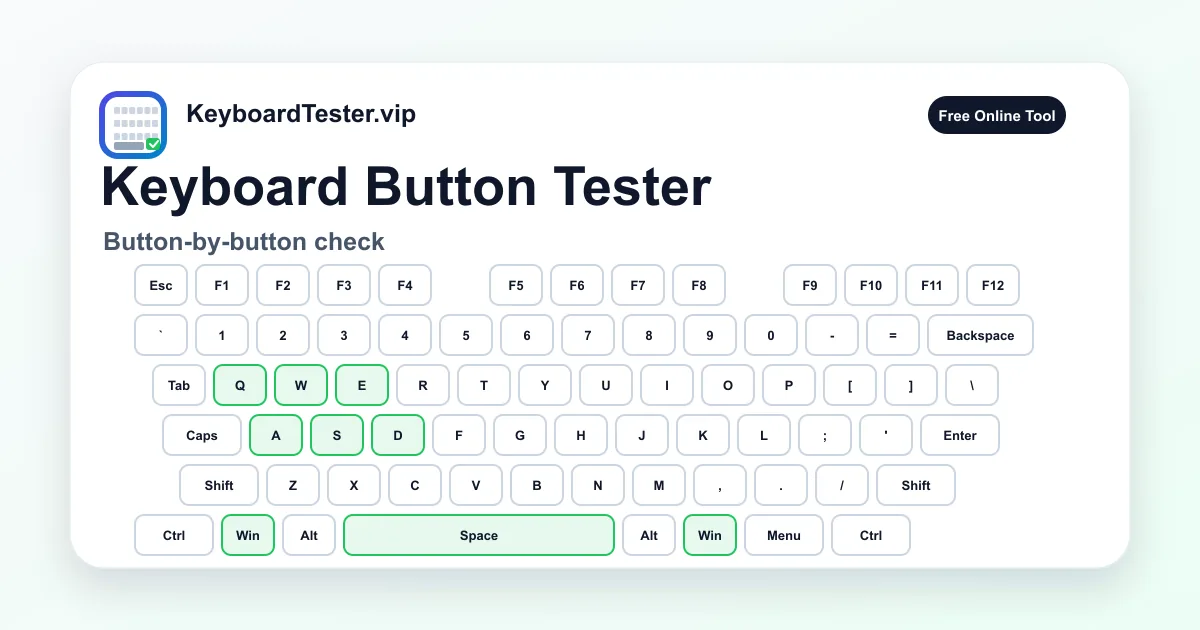
Quick diagnostic checklist
- Press the button once, then hold it briefly to confirm active state.
- Check the matching key label and last-key readout.
- Repeat the test after removing debris or reseating a keycap.
- Use the history row to confirm repeated presses are recorded.
Button problems versus layout problems
A physical button problem means the input is missing or unstable. A layout problem means the button works, but the character or command is different from what you expected. The live key label helps separate those two cases.
If the button appears with the expected scan code but types the wrong symbol in text fields, inspect your operating system keyboard layout, language settings, or input method rather than replacing hardware first.
What to do after a failed button test
Start with low-risk actions: remove the keycap if safe, clear visible debris, reconnect the keyboard, and test in another USB port. For hot-swappable boards, move the suspect switch to another socket and test again.
If the issue moves with the switch, replace or clean the switch. If the issue stays in the same socket, inspect the PCB, hot-swap socket, or solder point.
FAQ
Is a keyboard button the same as a key?
For testing purposes, yes. This page checks whether each physical button produces a detectable keyboard event.
Can I test laptop keyboard buttons here?
Yes, as long as the laptop key sends a normal keyboard event to the browser.
What if a button only works when pressed hard?
That usually suggests mechanical wear, debris, or contact instability rather than a layout setting.